A month has 720 hours. How many of them does your test environment actually run?
If the answer is “a few evenings a week”, paying for the whole month makes little sense. On Storc Cloud, servers are metered by the hour. This post explains how plans and hourly metering fit together, what a stopped server is still billed for and the 40-hour math, with numbers you can check yourself.
How plans and hourly metering fit together
A plan is your monthly credit
A plan sets your limits and comes back to you as usage credit every month:
| Plan | Price | Usage included | Limits |
|---|---|---|---|
| Free | $0 | $5 in your first month, then $1 a month | Servers up to 1 vCPU and 512 MB, 1 team member |
| Hobby | $5 a month | $5 every month | Up to 12 vCPU and 24 GB in total, public IPv4, 1 team member |
| Pro | $20 a month | $20 every month | Up to 24 vCPU and 48 GB in total, public IPv4, no seat limit |
| Enterprise | Custom | A monthly commitment | No vCPU or memory caps, single sign-on, dedicated support |
Usage is metered by the hour
Every hour a server runs is counted and comes out of your plan’s credit. Usage beyond the credit is billed at the same rate on your next invoice, and unused credit doesn’t roll over. The Billing screen shows your plan and your usage side by side, and usage updates every hour.
What a stopped server costs
The key line: a stopped server isn’t charged for CPU or memory. Its disk is still billed, and so are public IPv4 addresses, which are billed separately from compute.
| Running | Stopped | |
|---|---|---|
| CPU and memory | Metered by the hour | Not charged |
| Disk | Billed | Billed |
| Public IPv4 | Billed separately | Billed separately |
So stopping a server you aren’t using takes its CPU and memory charges to zero, while its disk and any public address stay with it, ready for the next start.
The math: a test environment that runs 40 hours a month
Say your tests run about ten hours a week. That’s roughly 40 hours a month.
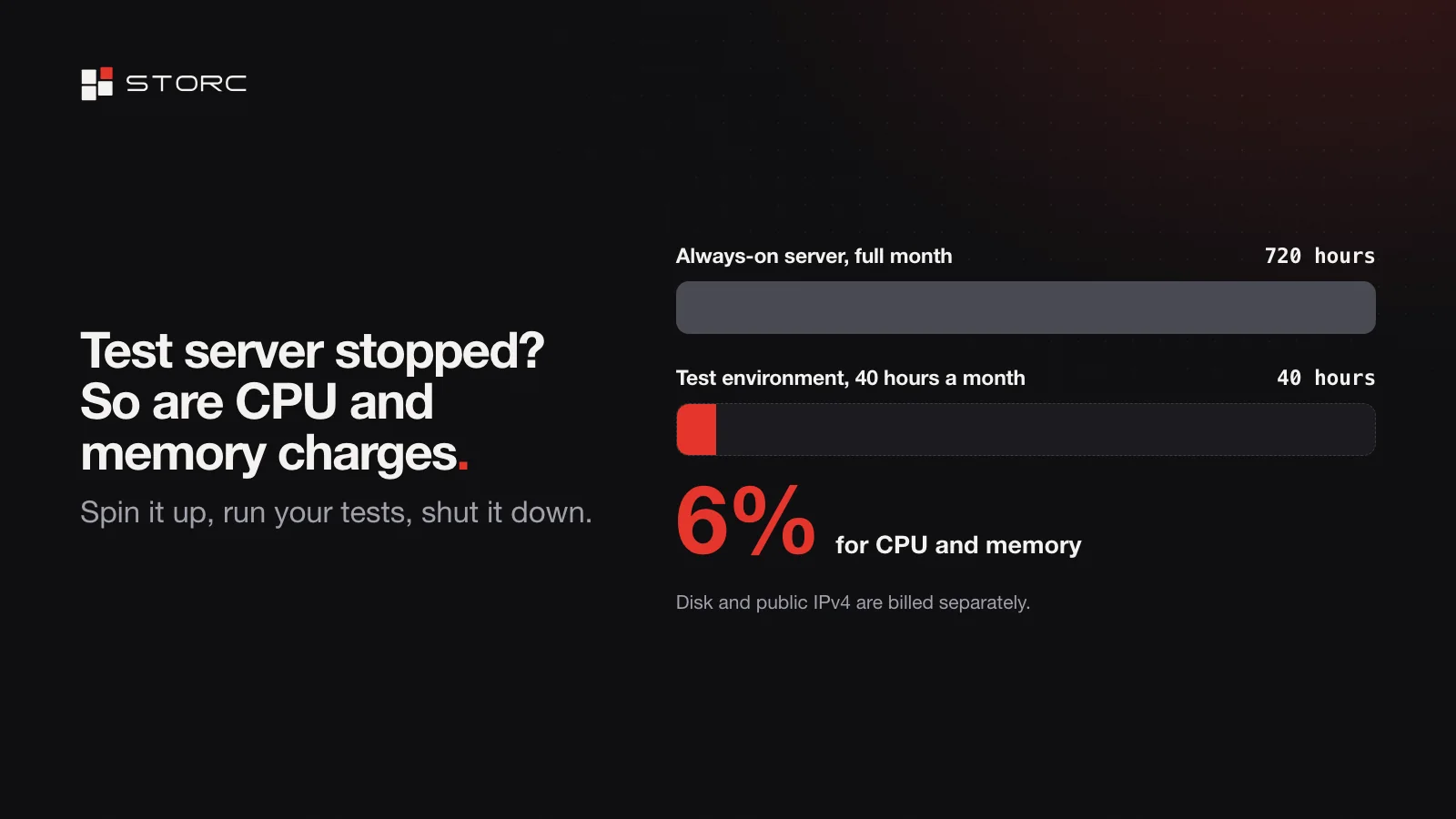
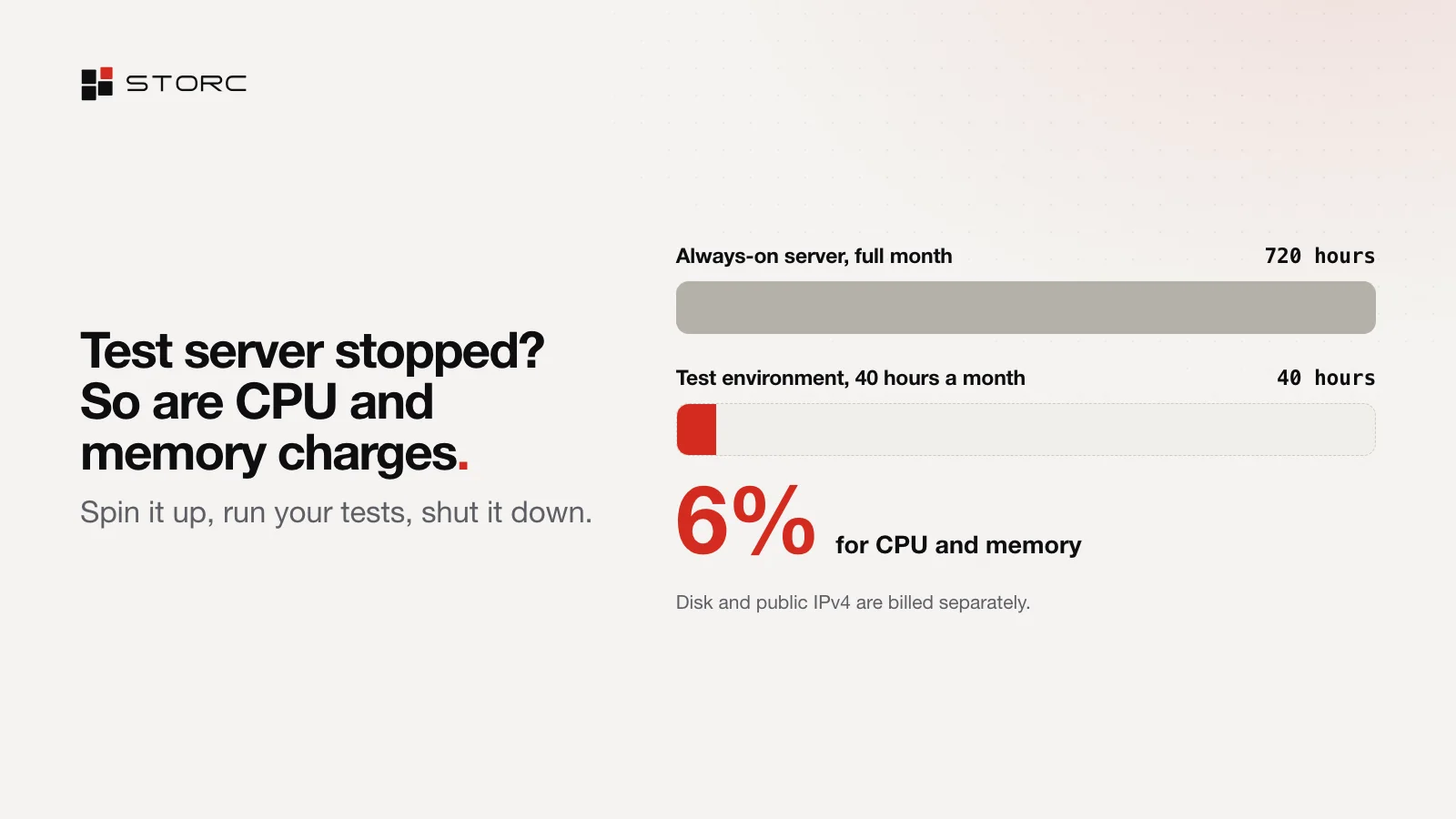
An always-on server runs all 720 hours of the month; the test environment runs 40. For CPU and memory, the test environment pays about 6% of what the always-on server costs. Same size, same region; the only difference is the hours it runs.
Hours in a month:              720
Hours your test env runs:       40
Share for CPU and memory:       40 / 720 = 0.056, about 6%
Disk and public IPv4:           billed separately
Work out your own number
Divide the hours your server runs in a month by 720. The result is its share of the always-on cost for CPU and memory. A staging server that runs office hours on weekdays, about 200 hours a month, comes to about 28%.
Habits that keep the bill tied to the hours you use
- Spin it up, run your tests, shut it down. Start, stop and restart run as jobs you can follow in the console.
- Tag your test servers, for example with
test. The server list filters by tag, so they’re easy to find in one view. - Script the routine. Everything in the console is in the API. Give the script that starts and stops servers a token with write scope, and anything that only reports a token with read scope.
- Or ask your AI assistant. Connected over MCP, it can stop the servers tagged
test, and it asks for your approval before it does. Connect your AI assistant with MCP shows how. - Check Billing during the month. Usage updates every hour.
Pick your plan from your own usage
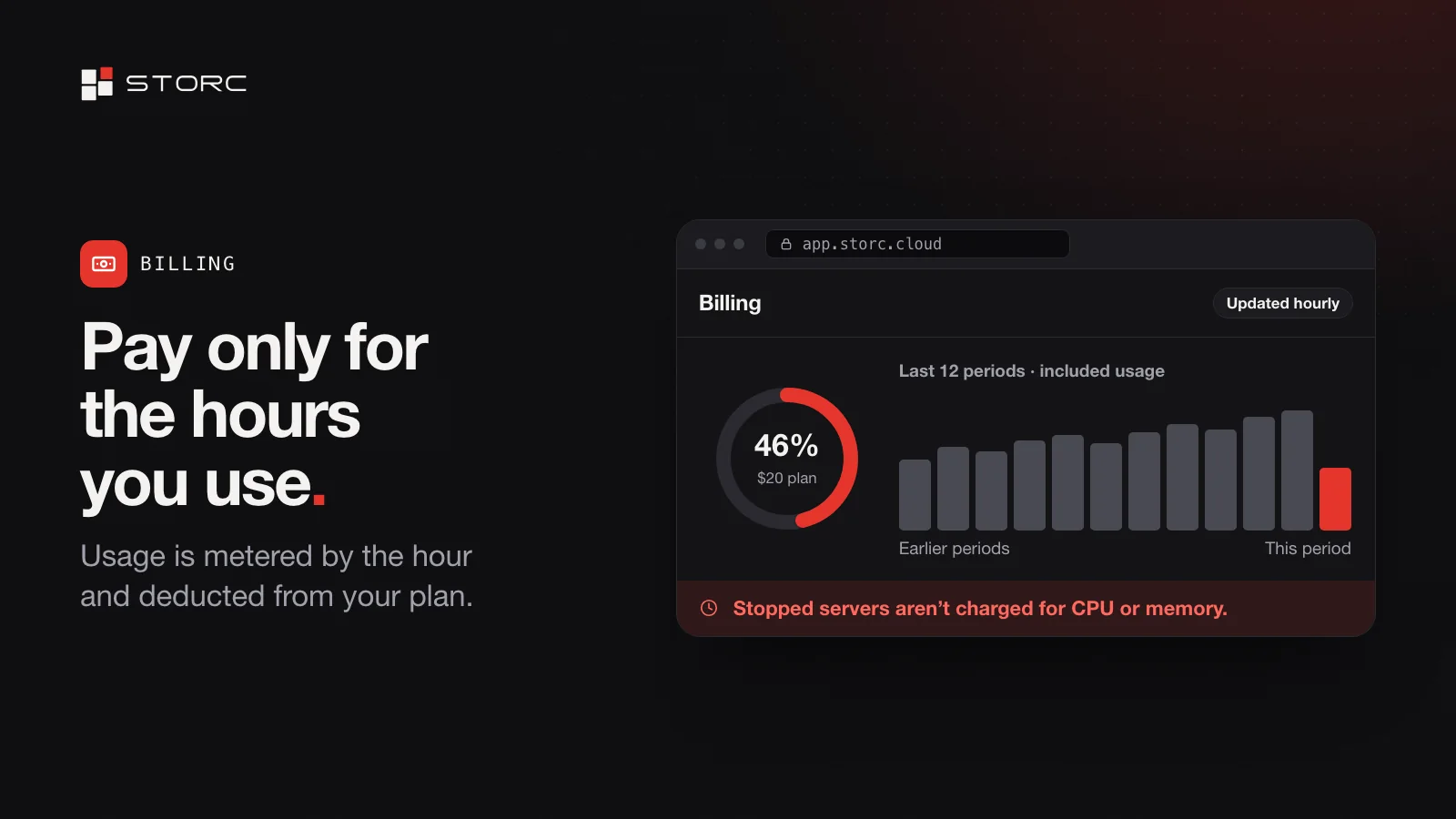
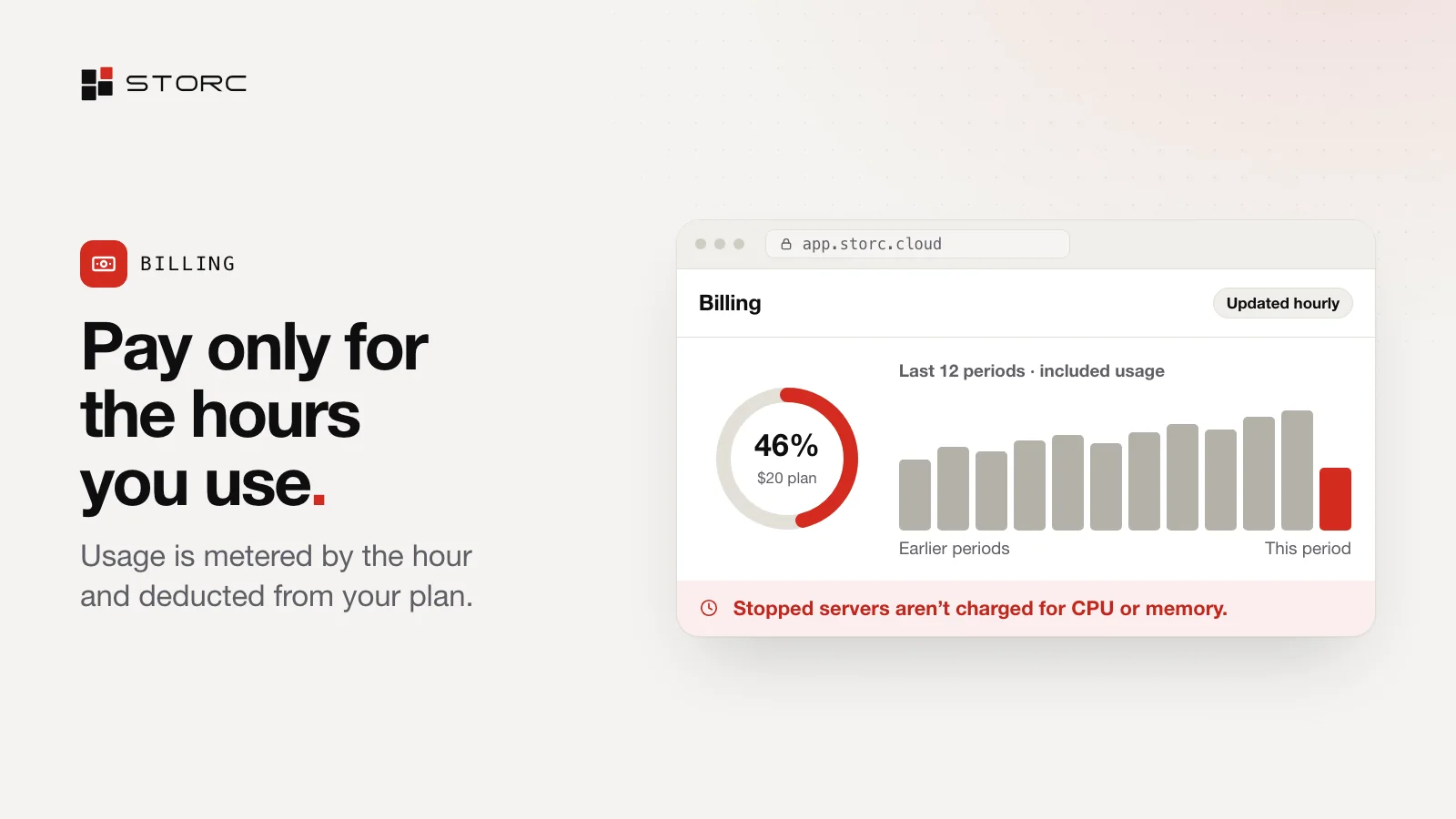
Billing shows the included usage and the amount used for each of the last 12 periods. Use that history to pick your plan: if you regularly use more than your credit, the next plan up may suit you better; if you never come close, a smaller one will do. Free and Hobby are for one person; Pro has no seat limit.
Quick answers
Am I charged for a stopped server? For CPU and memory, no. Disk and public IPv4 addresses are still billed.
How often does usage update? Every hour.
What if I use more than my plan includes? The extra usage is billed at the same rate on your next invoice.
Does unused credit carry over? No, it doesn’t roll over to the next month.
Which plan should I start with? Start on Free. Move to Hobby when a solo project needs more, or to Pro for a team.
Spin up a test server, stop it when you’re done and watch Billing update by the hour: app.storc.cloud. New to Storc? Start with your first server.