If it’s in the console, it’s in the API. With MCP, your AI assistant gets the same catalogue of actions, and it asks before it changes anything.
Storc isn’t an AI product. You bring the assistant you already use; Storc gives it the console’s actions, an approval step before every change and a record of everything it did.
MCP in one paragraph
The Model Context Protocol (MCP) is an open protocol that lets an AI assistant discover and call the actions a service offers. Instead of you copying output from one window into another, the assistant asks the service what it can do, then calls those actions for you. Storc speaks MCP, so an assistant that supports it can work with your infrastructure directly.
What your assistant can do in Storc
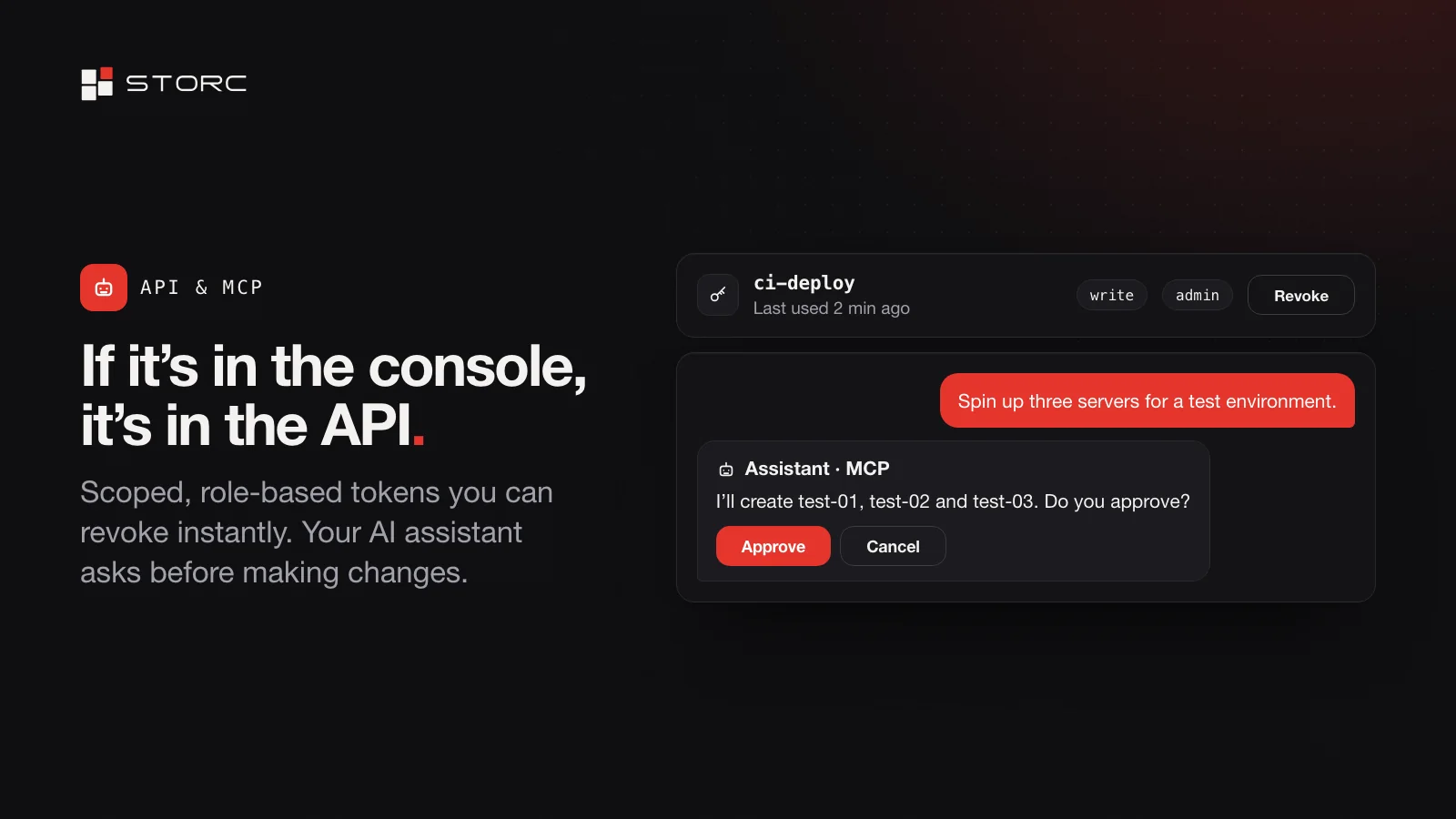
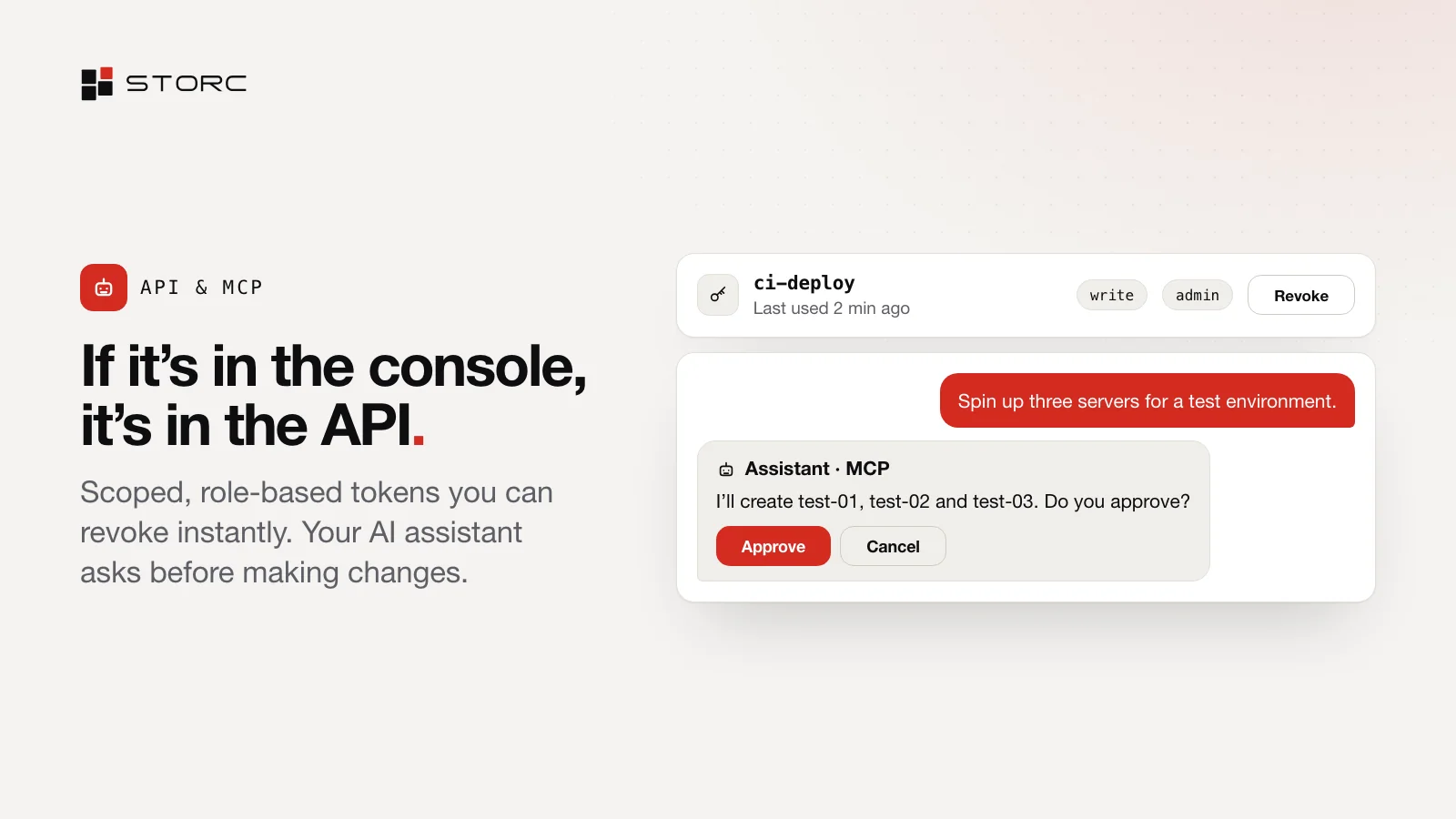
Your assistant uses the same catalogue of actions as the console. That covers reads, such as listing your servers or checking which ports are open, and writes, such as creating, stopping or deleting a server.
Approval before every write
Every write needs your approval. The assistant proposes, and you decide:
You:        Stop the servers tagged test.
Assistant:  I'll stop test-01, test-02 and test-03. Do you approve?
You:        Approve.
This exchange is an illustration; the exact wording depends on your assistant.
Every action on the record
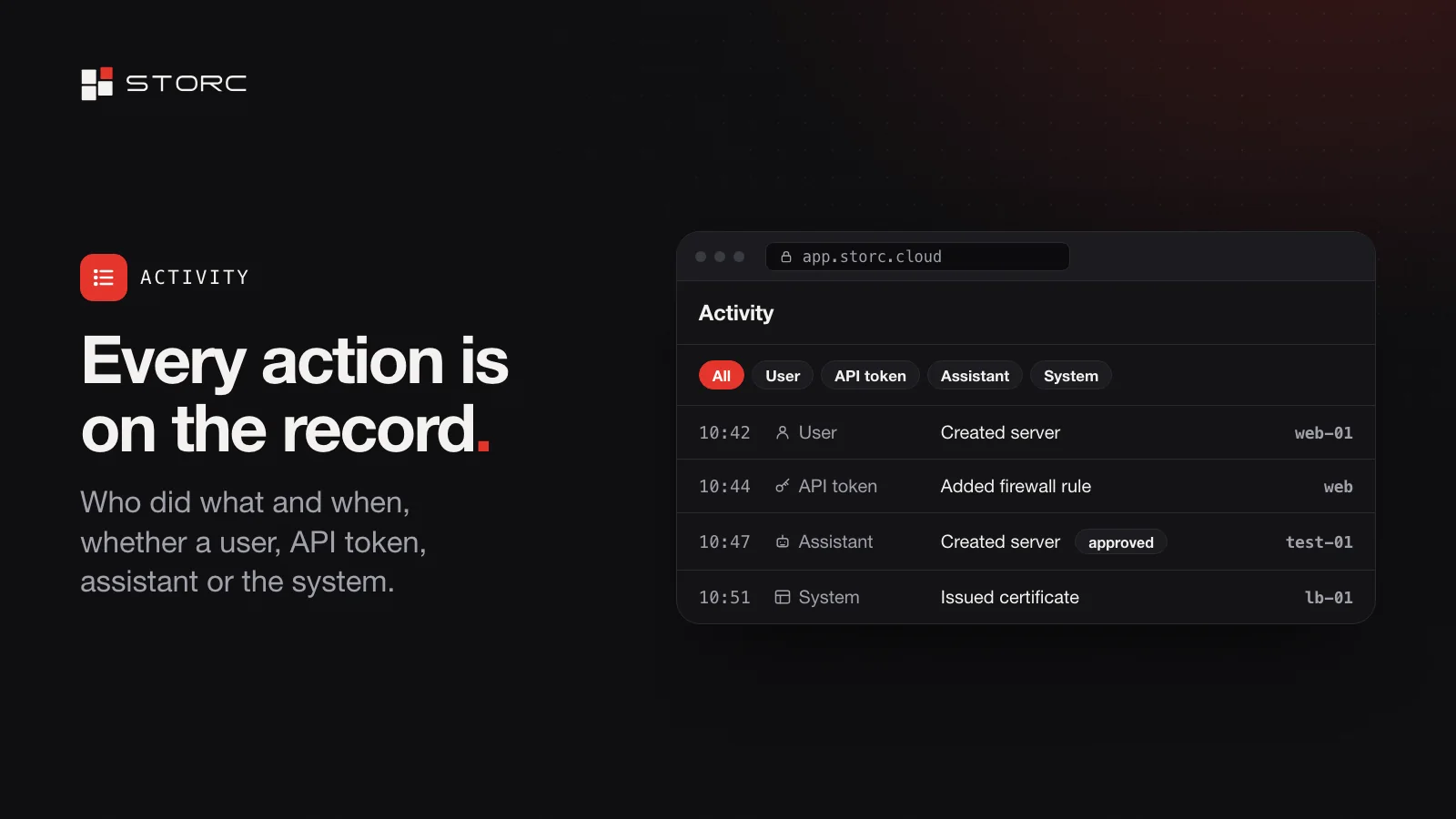
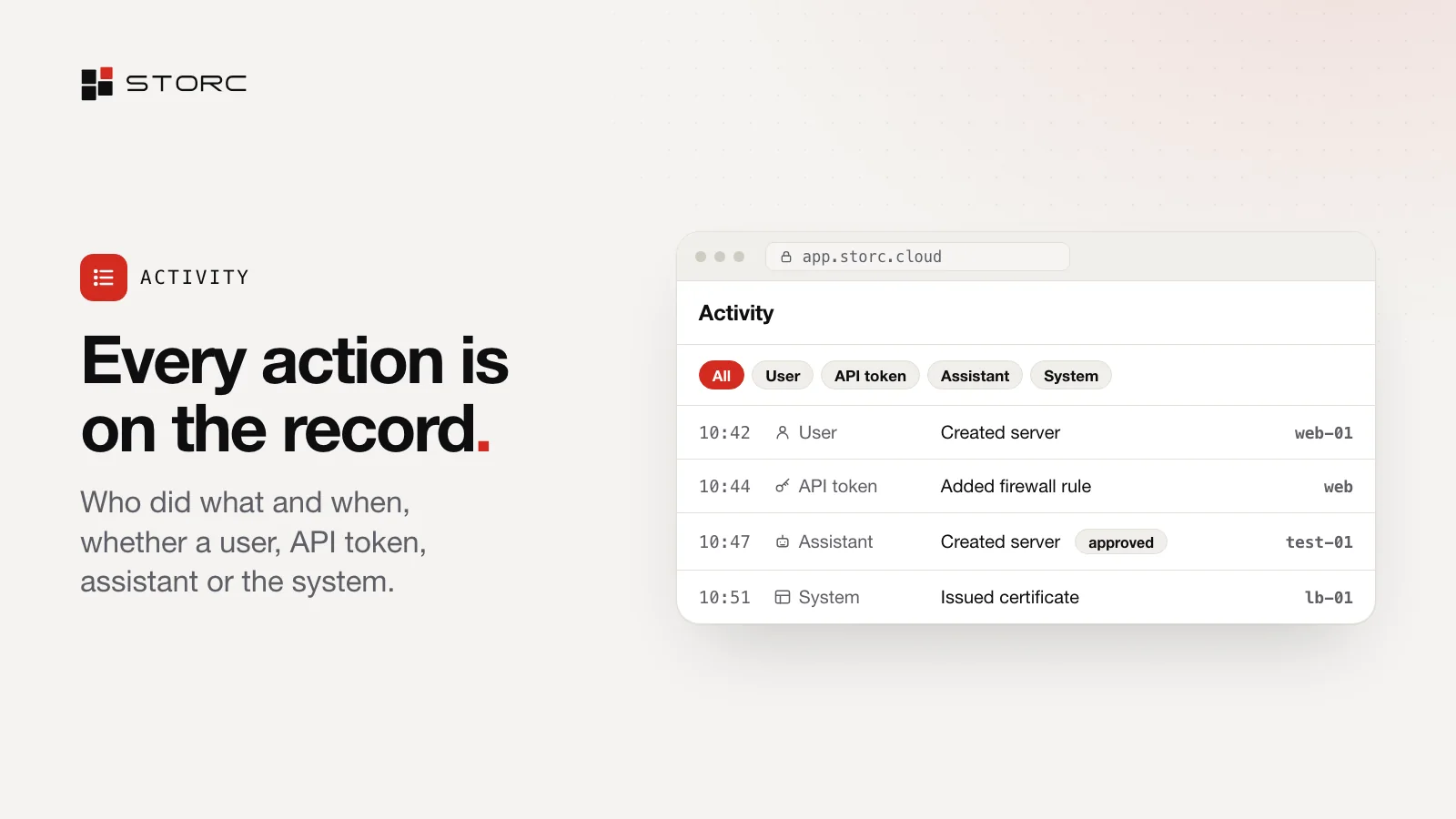
The activity log records every action: when, who, what happened and to which resource. Actors are people, API tokens, assistants and the system, and whatever your assistant does shows “assistant” as the actor. You can always tell which changes came from a conversation.
Connect your assistant
Start from API & MCP in the console at app.storc.cloud. That’s where you create tokens and connect your assistant.
Scripts or an assistant: two ways to automate
- The API. Everything in the console is in the API. The server summary even shows the API equivalent of a create request, a short way from a click to code.
- Tokens. Each token has a name, a role and a read or write scope. You see who created each one and when it was last used. The secret is shown once, and revoking a token takes effect immediately.
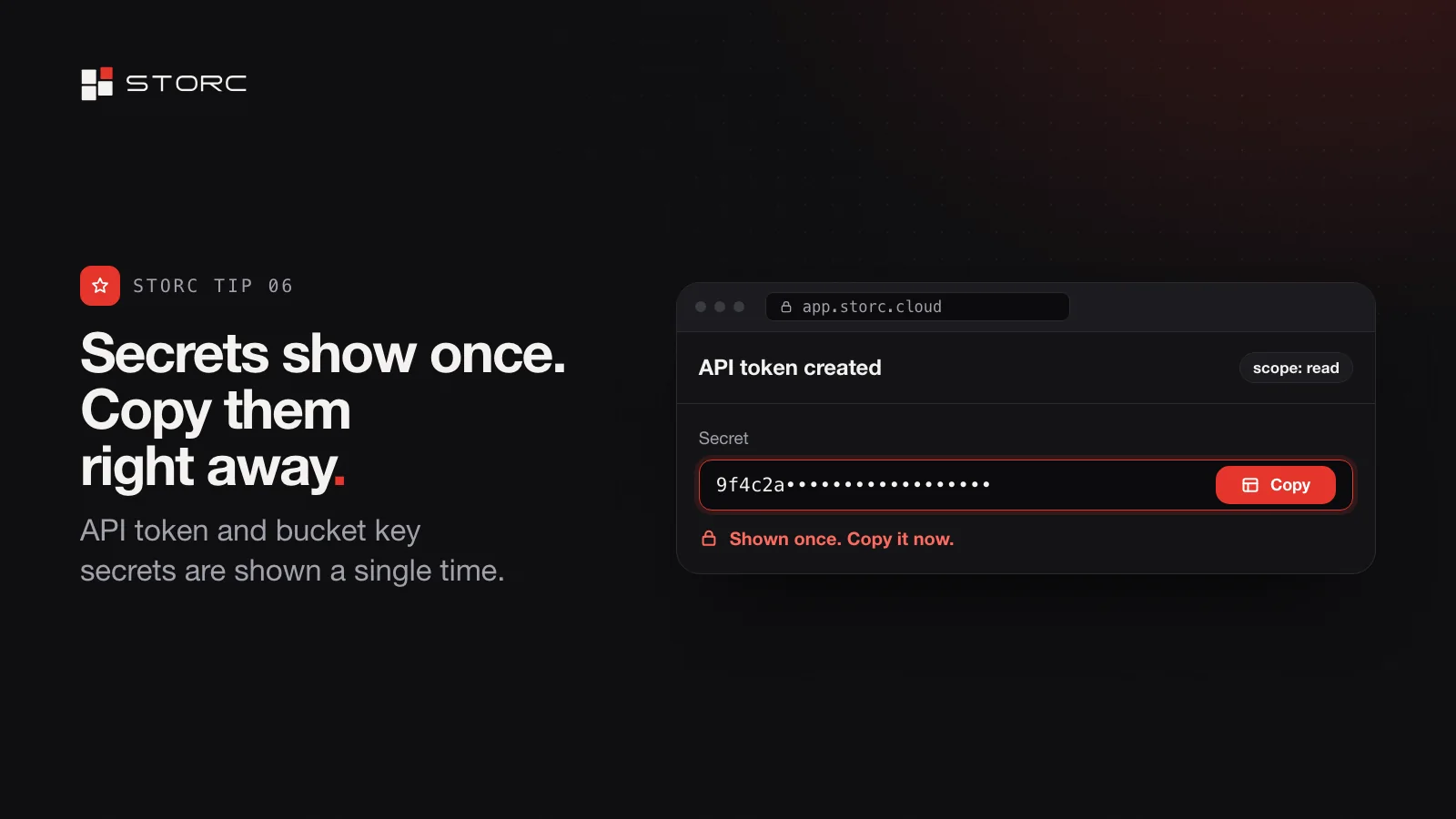
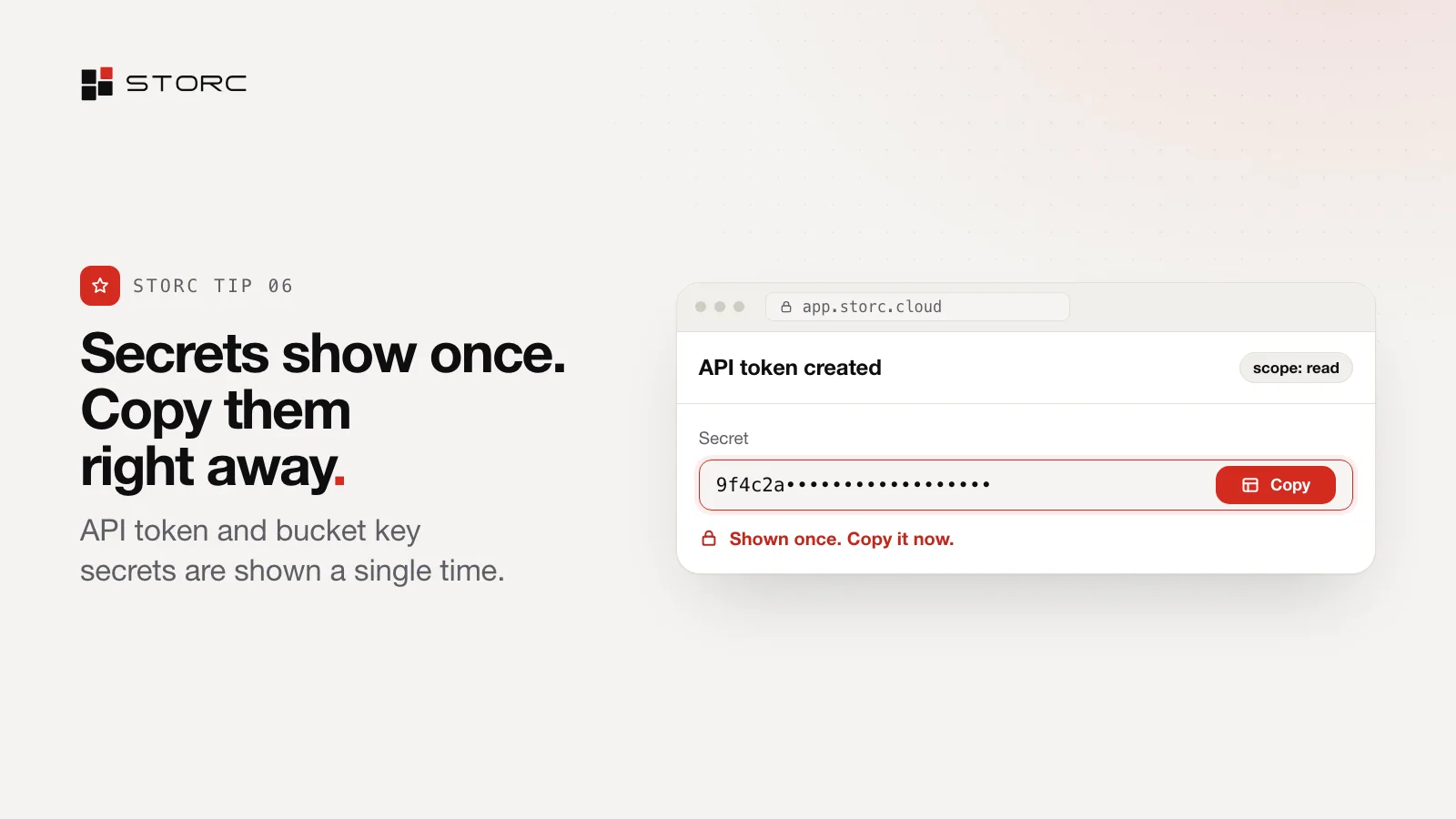
Use scripts for jobs that run the same way every time, and the assistant for questions and one-off changes, with every write approved by you.
Prompts to try
Reads:
- “Which servers are tagged test?”
- “Show the open ports for web-01.”
Writes, each with your approval:
- “Spin up three servers for a test environment.”
- “Stop the servers tagged test.”
Quick answers
Can the assistant change things without me? No. Every write asks for your approval.
How do I see what it did? In the activity log, its actions show “assistant” as the actor.
Does Storc include an assistant? No. You connect the assistant you already use.
Create your first API token under API & MCP, then connect your assistant at app.storc.cloud. Stopping test servers is a good first job; Hourly billing, explained shows why.