That port someone opened for a quick test months ago? It may still be open today, and nobody remembers why.
Storc starts from the other end. Inbound traffic is closed until you open it, and every opening is a rule you can read. This post explains what “closed by default” means, how a rule is built and how to check everything that’s open in one place, with a step-by-step example.
What “closed by default” means
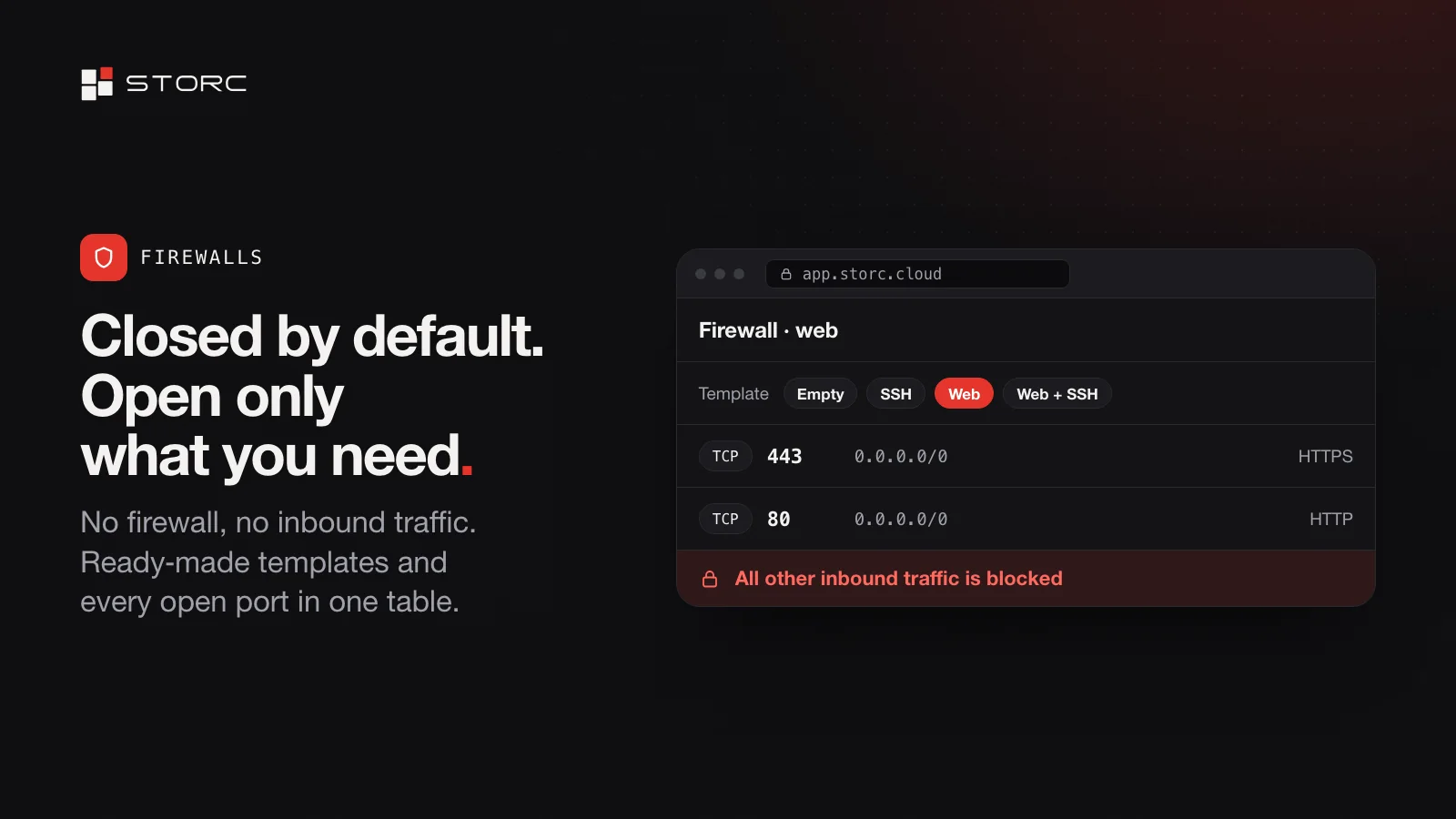
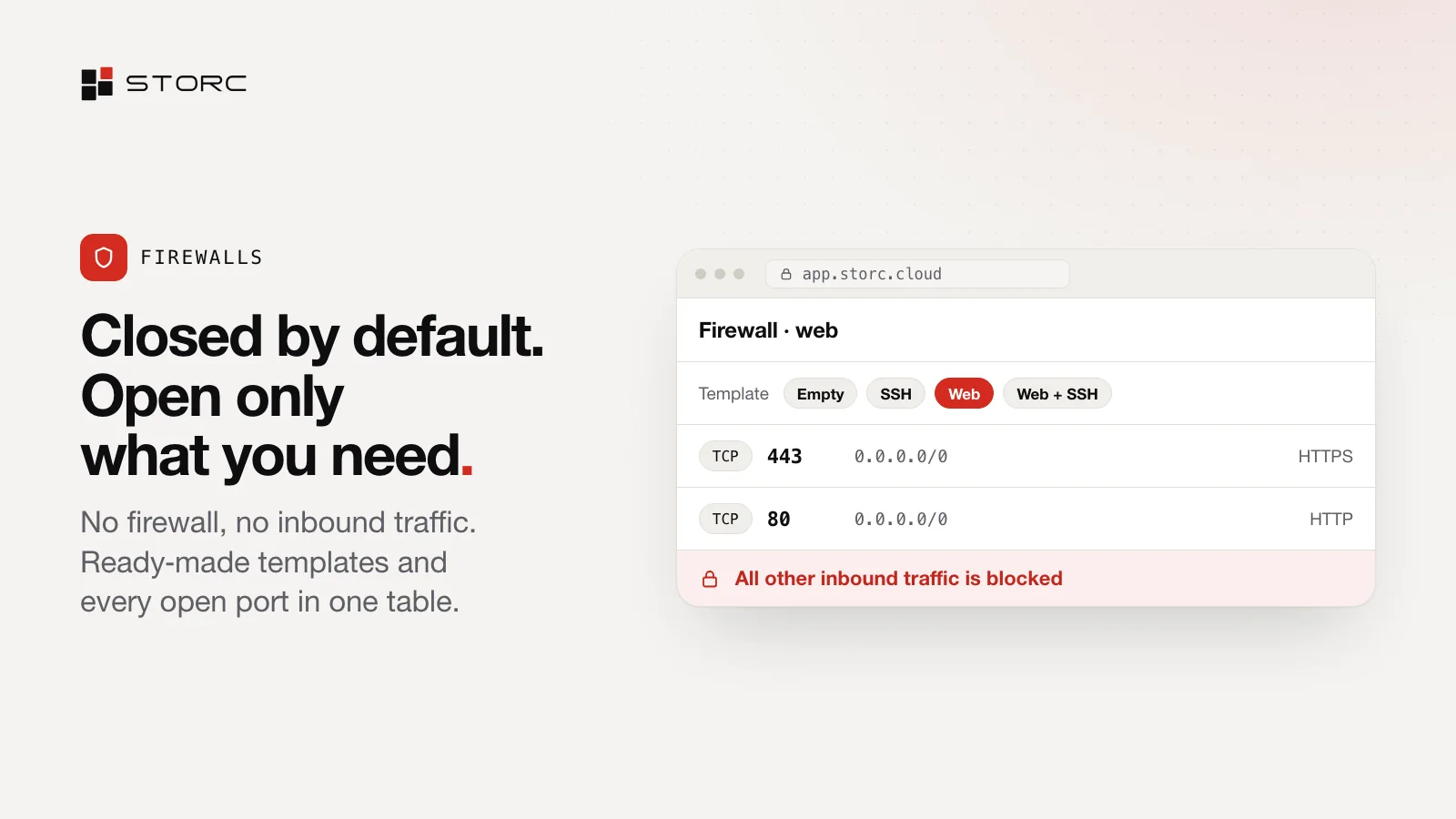
- With no firewall, inbound traffic to a server is closed.
- A server with a public IP needs at least one firewall.
- The last firewall can’t be detached from a server that has a public IP.
The upshot: anything reachable from outside is there because someone wrote a rule for it.
Anatomy of a rule
Every rule has four fields: protocol, port, source and description.
Source: who may connect
The source is a range of addresses in CIDR notation. 0.0.0.0/0 means anyone, which is
right for public web ports. Admin ports deserve a narrow range, such as your office’s. In
this post, the office is 203.0.113.0/24.
Description: why the port is open
The description field looks minor. Months later, it’s what tells you why a port was opened, and whether it still needs to be.
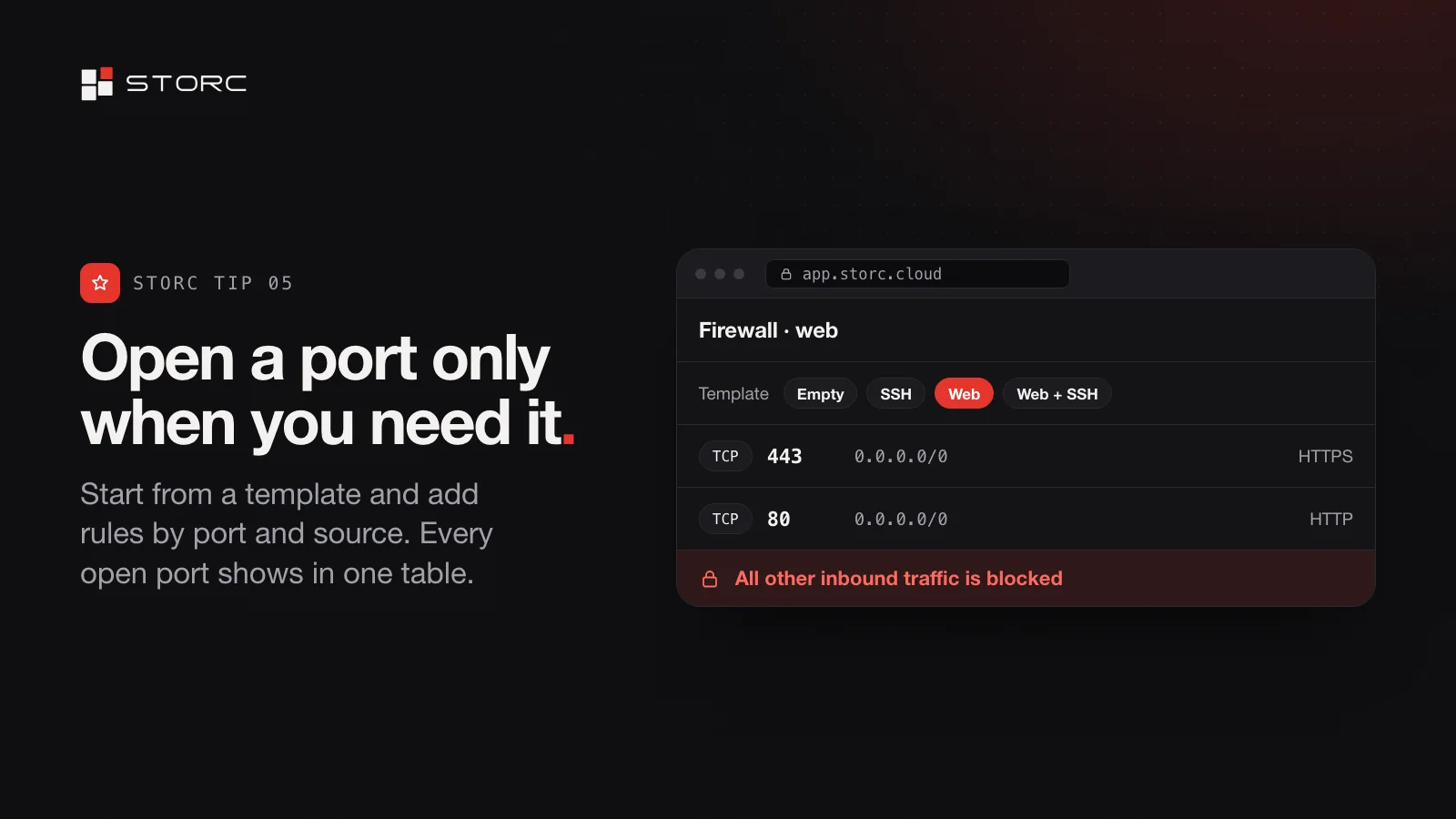
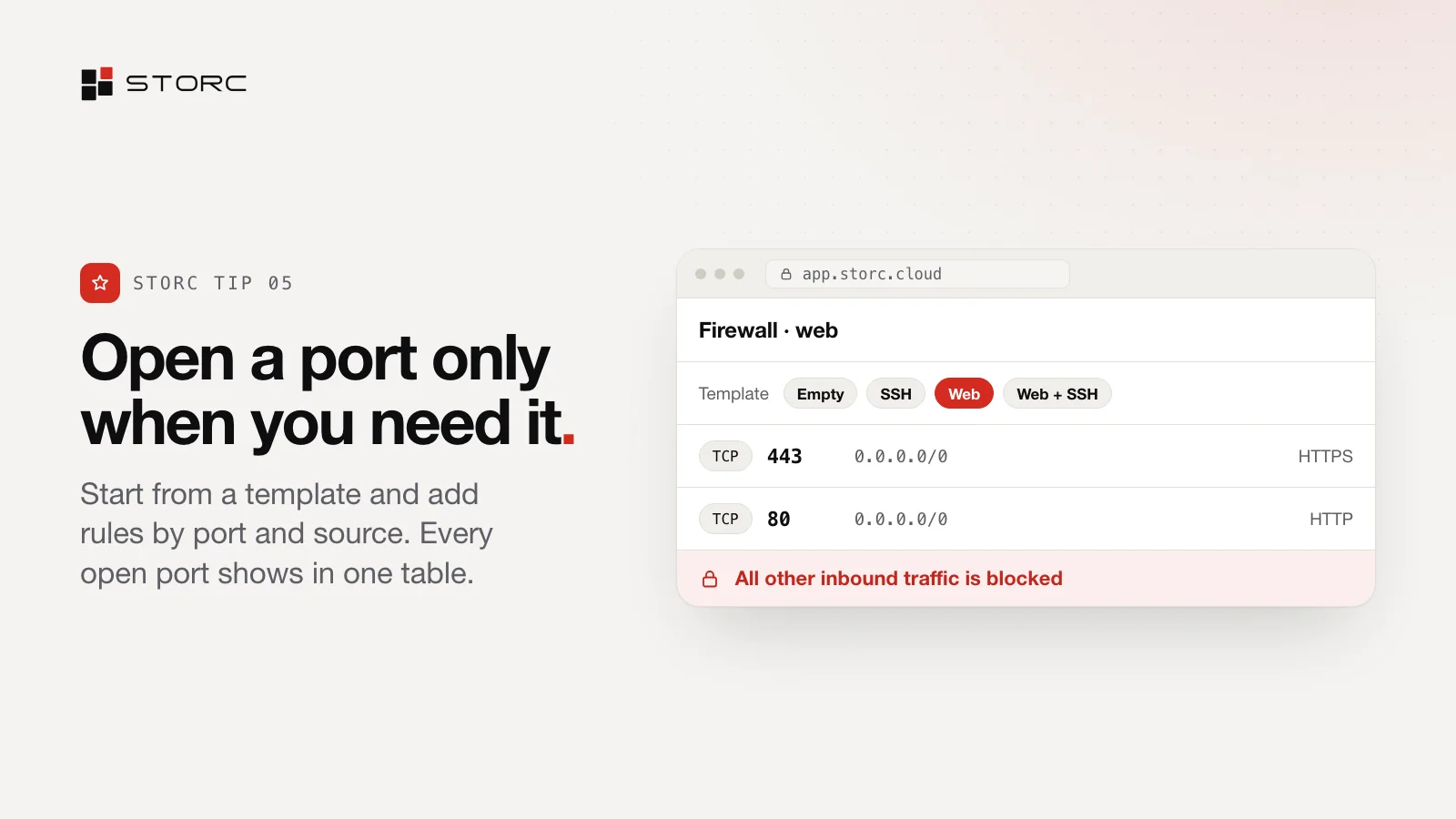
Start from a template
Four templates cover the usual cases:
| Template | Opens | Use it for |
|---|---|---|
| Empty | Nothing | Writing every rule yourself |
| SSH | 22 | Admin access |
| Web | 80, 443 | A web server |
| Web + SSH | 22, 80, 443 | A web server you also administer |
Walkthrough: a web server open to everyone, SSH open to your office
1. Create a firewall from the Web + SSH template
The template adds rules for ports 22, 80 and 443.
2. Narrow the SSH source to your office
Set the source of the port 22 rule to 203.0.113.0/24. The web ports stay open to everyone.
3. Write a description on every rule
| Protocol | Port | Source | Description |
|---|---|---|---|
| TCP | 80 | 0.0.0.0/0 | Public web (HTTP) |
| TCP | 443 | 0.0.0.0/0 | Public web (HTTPS) |
| TCP | 22 | 203.0.113.0/24 | Office SSH |
4. Attach the firewall to the server
Pick it in the server form when you create the server, or attach it afterwards.
5. Check the open ports view
Open the open ports view and confirm that the server shows exactly these three ports, with the sources you expect.
The open ports view: everything that’s open, in one table
The open ports view lists every open port across your servers in one table, with the server, its IP, the port, the source and the firewall the rule comes from. Use it for a regular review and look for three things:
- admin ports open to
0.0.0.0/0, - rules without a description,
- ports nobody can explain.
Where firewalls meet the rest of the console
- Private network. Servers that don’t need a public IP stay on your isolated private network, and a gateway handles their traffic in and out.
- Zero Trust access. An admin can turn it on so your team reaches the private network without a VPN.
- Load balancer. Publish a web app from a server on your own domain without giving the server a public IP: point a CNAME at the load balancer, and HTTPS certificates are issued and renewed automatically.
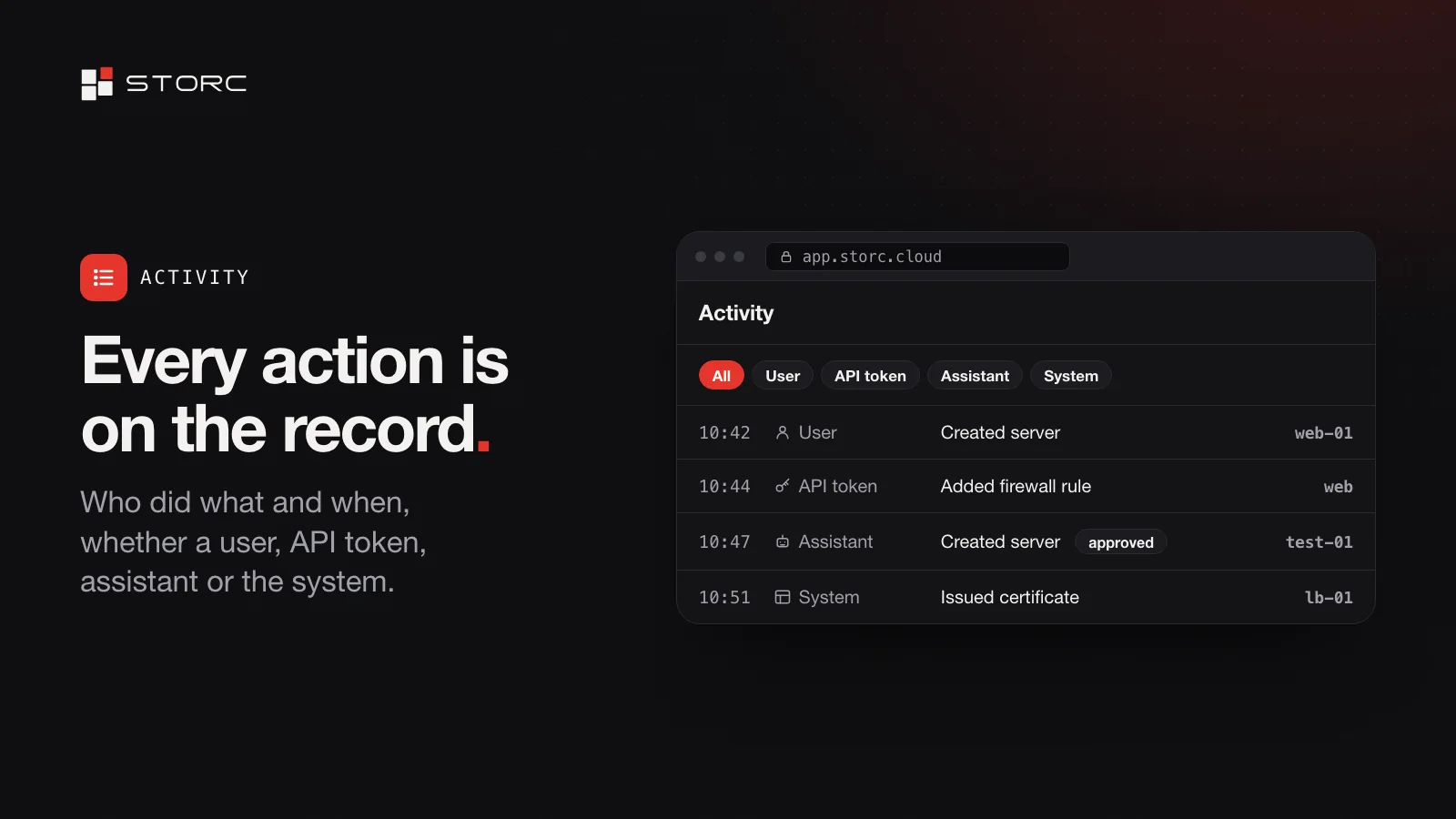
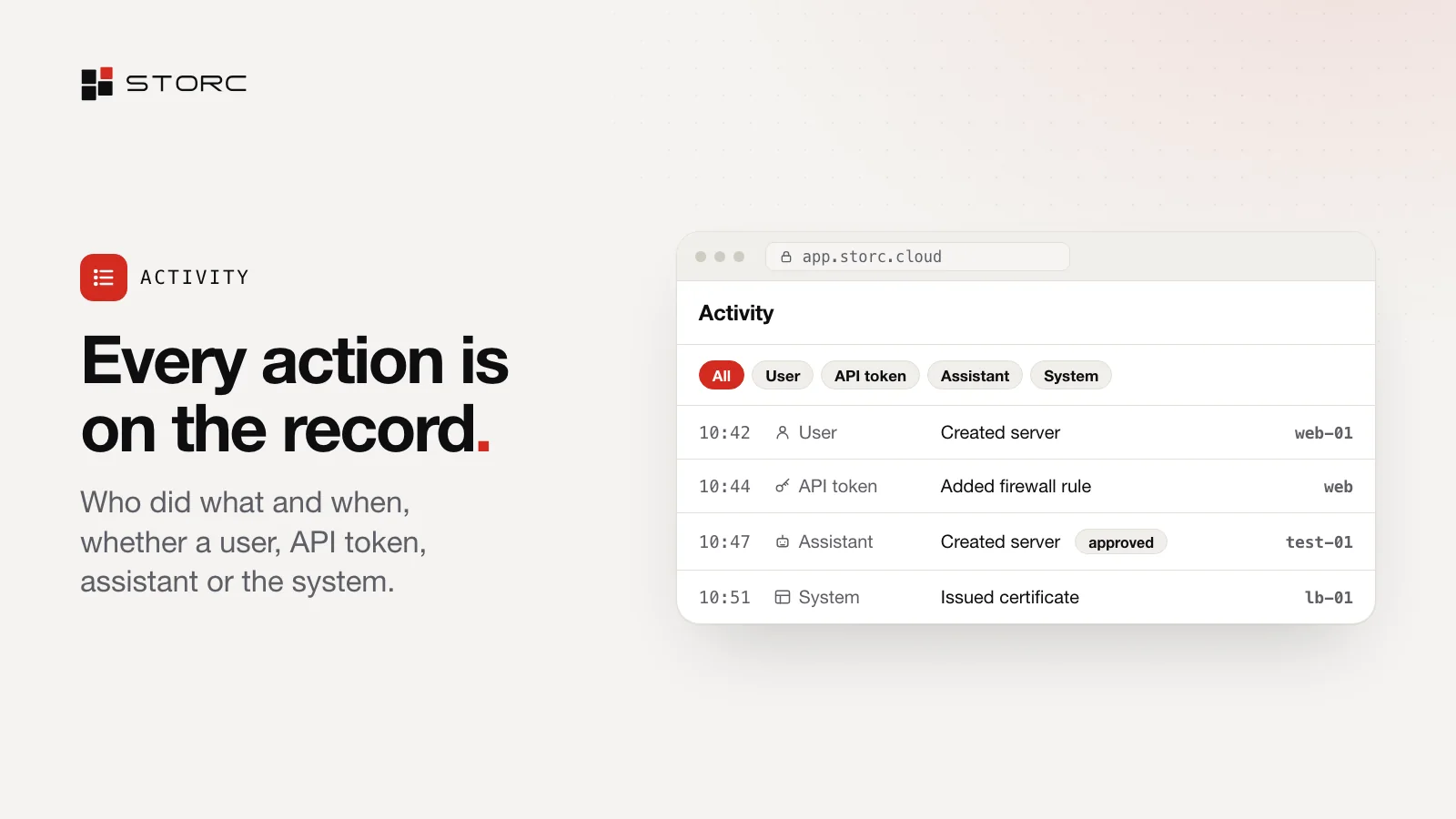
- Activity. Every action lands in the activity log, with when, who, what happened and which resource, so a changed rule has a name and a time next to it.
A five-point checklist
- Start from the narrowest template that fits.
- Give admin ports a narrow source.
- Describe every rule.
- Review the open ports view on a regular schedule.
- Check Activity when something changes.
Quick answers
What happens if a server has no firewall? Inbound traffic is closed.
Can I detach the last firewall from a server? Not while it has a public IP.
Which templates are there? Empty, SSH (22), Web (80 and 443) and Web + SSH.
How do I see everything that’s open? The open ports view lists server, IP, port, source and firewall in one table.
Check your open ports view at app.storc.cloud. New to Storc? Spin up your first server first.